Figma 101: Complete Tutorial
Web Design Fundamentals · Spring 2026
Overview
Today, in lieu of holding class (I'm out of town), you will be working through Design Lab's Figma 101 course — a 6-lesson tutorial that takes you from basic shapes to a working app prototype. Normally spread over several weeks, you'll complete all 6 parts in one session today.
Each lesson takes about 15 minutes. As you work, make the app yours — pull the fonts, colors, and overall vibe from your Moodz & Vibes board. This is your app, let it feel like you.
Figma recently updated its interface. The tutorial screenshots on Design Lab may look different from what you see in Figma today — panels have moved, some icons have changed, and the toolbar is reorganized. Don't let that throw you off. The tools and features are all still there; just poke around if something isn't where the screenshot shows it.
Figma File Setup
Create one Figma file and add a new page for each part as you go. All 6 parts live in the same file.
your-name-figma-101 e.g. travis-masingale-figma-101
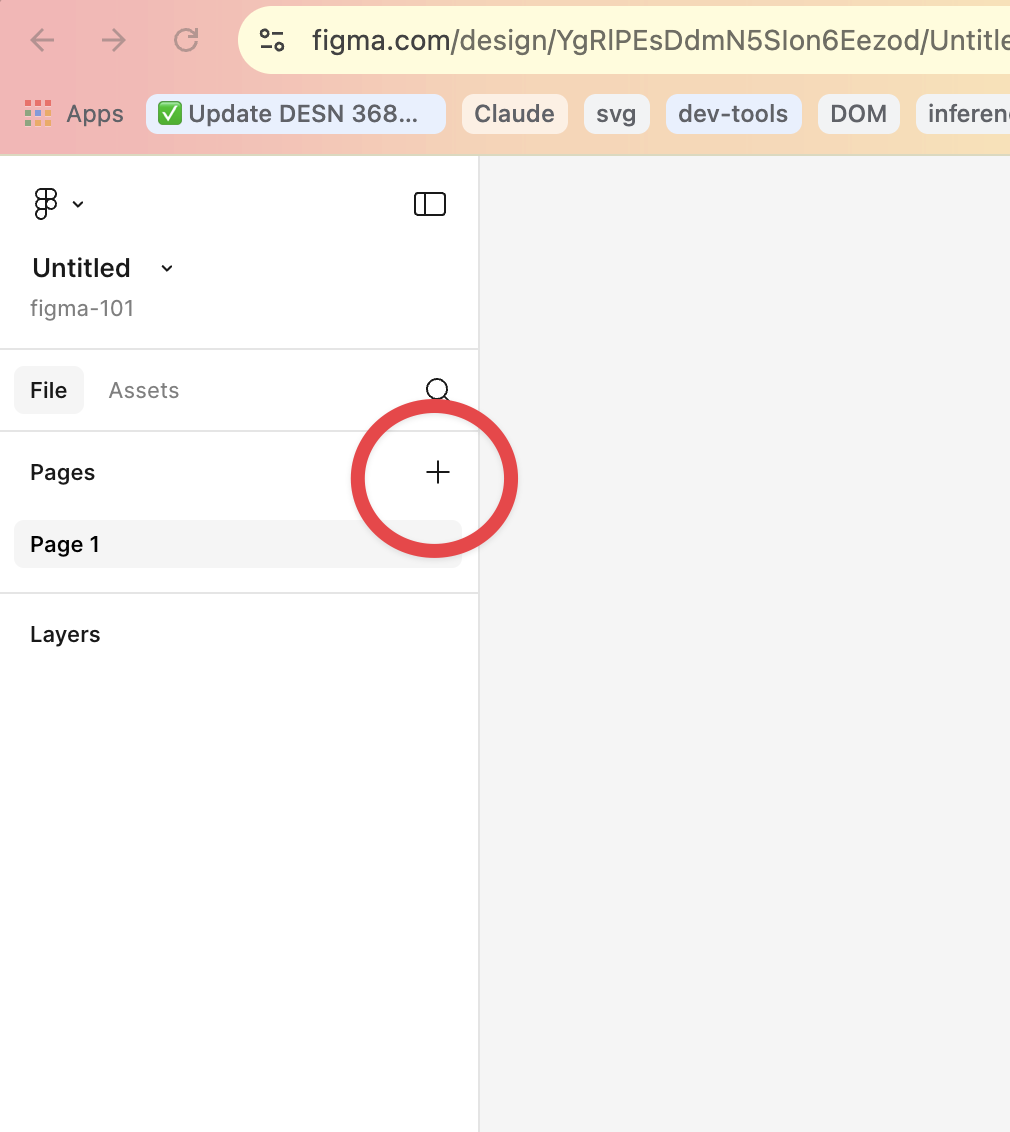
To add a new page, click the + button next to "Pages" in the left panel:
The 6 Parts
Work through them in order. Each one builds on the last.
- Design a Button — shapes, fills, and Figma basics
- Design an App Screen — frames, layout, and layering
- Logo & Icon Set — vector tools and component creation
- Design the Next Two App Screens — building out your app flow
- Create and Test a Prototype — interactions and prototype mode
- Create a Tablet or Desktop Version — responsive layouts
When you're done, paste the link to your Figma file in the Canvas submission box below. Make sure sharing is set to anyone with the link can view.